
0.0.0.0 on port 7443 with a self-signed certificate(unless otherwise configured). This IP is an alias meaning that it will be listening on all IPv4 addresses on the machine. Browse to either https://127.0.0.1:7443 if you’re on the same machine that’s running the server, or you can browse to any of the IPv4 addresses on the machine that’s running the server.
- Browse to the server with any modern web browser. You will be automatically redirected to the
/loginurl. This url is protected byallowed_ip_blocks. - The default username is
mythic_adminand the default password is randomized. The password is stored inMythic/.envafter first launch, but you can also view it withsudo ./mythic-cli config get MYTHIC_ADMIN_PASSWORD. You can opt to set this before you initially start if you want (or you can change this later through the UI) by setting that environment variable before staring Mythic for the first time.
Authorization: Bearer <token> on protected HTTP and GraphQL requests. Protected endpoints no longer accept the mythic cookie as authentication.
Custom clients should either exchange a username and password at /auth and refresh the resulting access token, or use a scoped API token. Both token types use the same Bearer header. Do not use the removed apitoken header.
Your connection is not private Warning
If you’re using Chrome and a self-signed certificate that’s default generated by Mythic, you will probably see a warning like this when you try to connect: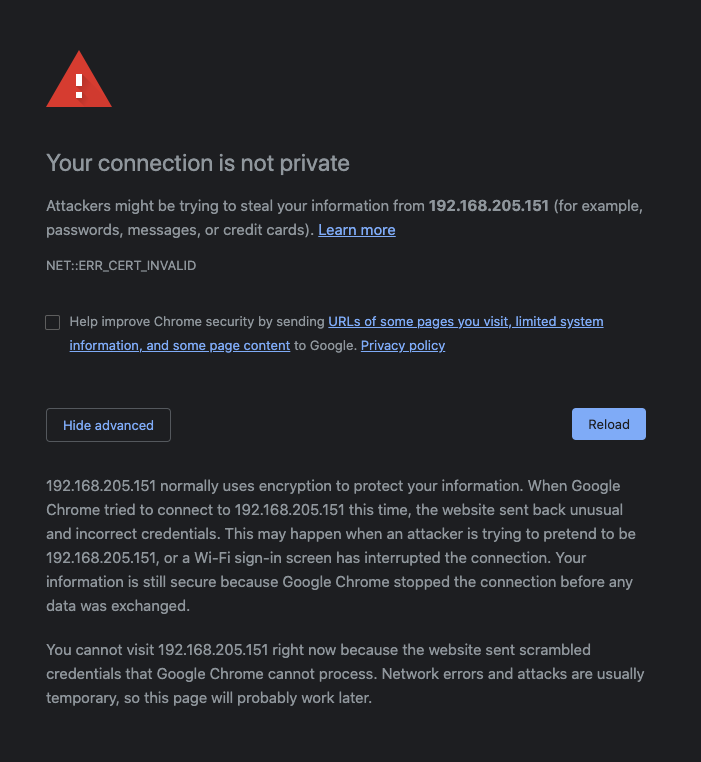
thisisunsafe. Your browser will now Temporarily accept the cert and allow you through.
At some point in the future, your browser will decide to remind you that you’re using a self-signed certificate. Mythic cannot actually read this error message due to Chrome’s security policies. When this happens, simply refresh your page. You’ll be brought back to the same big warning page as the image above and you can type thisisunsafe again to continue your operations.